

Windows on Steam Machine: What Valve’s Official Drivers Actually Support
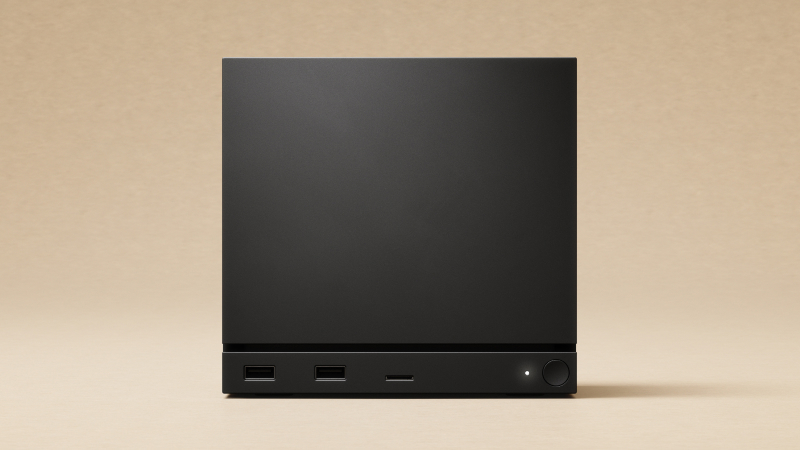
Valve has published Windows resources for Steam Machine, but explicitly provides them as-is and does not offer dedicated Windows-on-Steam-Hardware support. Installation is possible, although it requires wiping SteamOS data.
The Available Driver Packages
Valve lists separate Steam Machine packages for graphics, Wi-Fi, Bluetooth, and the SD-card reader. Graphics and SD packages use Setup.exe; Wi-Fi uses qcwlan64.inf and Bluetooth uses BtFilter.inf.
Save the packages to external storage before starting. Windows is not guaranteed to retrieve the same versions that Valve provides for its own device.
Installing Windows Removes SteamOS
The official instructions state that Windows installation requires wiping Steam Hardware. A dual-boot wizard is not available yet, even though the hardware is technically capable of dual boot.
Back up saves, Desktop Mode files, and anything not synchronized through Steam Cloud. Cloud status must be checked separately for each game.
Why Ethernet Is Required During Setup
Entering a product key during installation requires internet access. Valve recommends Ethernet for Steam Machine because the Windows installer does not yet have a working Wi-Fi driver available at that stage.
That does not conflict with the downloadable Wi-Fi package, which can be installed after Windows starts. The safer kit includes Ethernet, a USB drive containing drivers, a keyboard, and a mouse.
Opening the Boot Menu
Power the unit down, then boot while repeatedly tapping Escape until the boot menu appears. Select the prepared Windows installation USB drive from that menu.
Keep the official SteamOS recovery image before wiping the device. If installation fails or Windows does not fit the use case, the image provides a route back to the default system.
Display and Resolution Context
Steam Machine supports HDMI 2.0 and DisplayPort 1.4. Gaming Mode defaults to HDMI when connected and currently uses one display at a time. The system’s default game resolution is 1080p, which is also used for Steam Machine Verified testing.
Windows display behavior depends on the graphics driver and operating-system configuration. Output support at a higher resolution does not guarantee equal game performance.
Who Should Change the Operating System
Windows may be necessary for a particular game, application, or peripheral that does not work with SteamOS. The cost is losing the ready-made console interface, accepting unsupported operation, and maintaining drivers manually.
Check more than game launch: test sleep, wake, display audio, Bluetooth controllers, and the SD-card reader. A driver package confirms a support path for the device, not console-grade behavior in every scenario.
Returning to SteamOS requires the recovery image and another local-data restore. Windows is therefore a deliberate platform change, not a risk-free toggle.
When the required game already works in SteamOS, the default system remains the lower-risk choice. Until the dual-boot wizard ships, experimentation should begin only after a complete backup. Sources: Steam Support Windows Resources; Steam Machine Feature and Troubleshooting Guide; Valve.
Аналитика MBG
