

Apex Legends Best Settings Guide

Apex Legends is a fast-paced battle royale where split-second decisions matter. To succeed in ranked matches or casual games, your in-game settings must prioritize stable frame pacing, low input delay, and clean visibility during fights. This guide consolidates the best configuration options for Apex Legends, focusing on maximizing performance without sacrificing visual clarity.
Whether you are playing on a high-end rig or a modest laptop, the core principles remain the same: use Fullscreen mode for stability, disable V-Sync to reduce latency, and cap your FPS near your monitor's refresh rate. For NVIDIA GPU users, enabling Reflex Boost is essential for lowering system latency. The recommended Field of View (FOV) range is 100–110, providing a wide enough perspective without distorting distant targets too much.
This guide also addresses specific needs for low-end PCs, offering a path to stable gameplay even on weaker hardware. We will walk through graphics optimizations, input configurations for both mouse and controller, audio tuning for competitive advantage, and essential gameplay tweaks introduced in recent updates like Season 29: Overclocked. By following these steps, you can ensure your system runs efficiently, allowing you to focus entirely on the action.
Graphics Settings Optimization
The foundation of a smooth Apex Legends experience lies in your graphics settings. The primary goals are stable frame pacing and clear visibility during chaotic team fights. Heavy visual effects can cause stuttering, which disrupts aim tracking and recoil control.
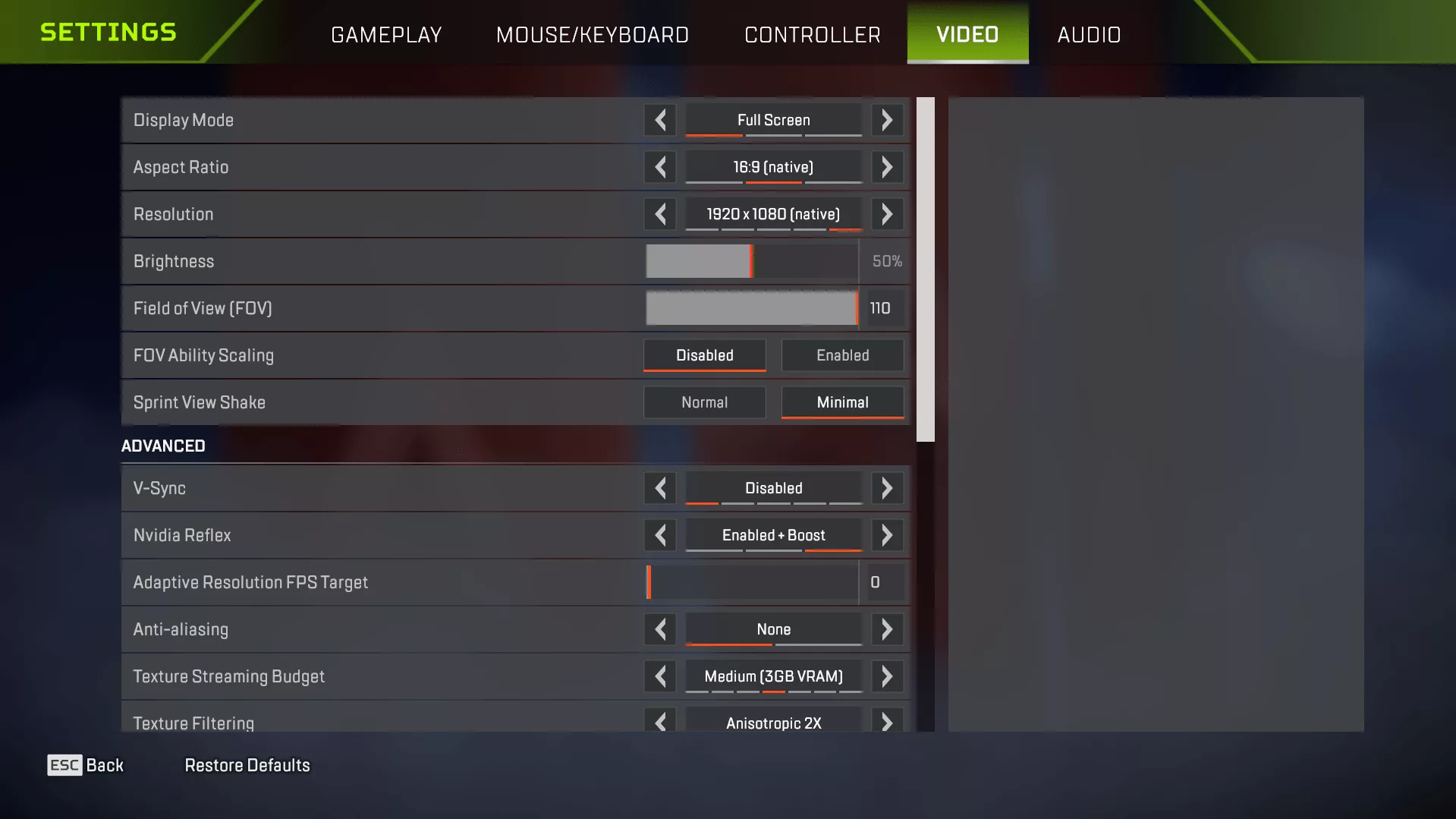
Start by setting the Display Mode to Fullscreen. This gives the game exclusive focus on your monitor, usually providing the most stable FPS compared to Borderless Windowed mode. For resolution, 1920×1080 is the recommended starting point for most players as it balances clear visuals with steady performance. If you are on a low-end PC and experiencing instability, dropping to 1600×900 can be considered a last resort, though it may make distant enemies harder to see.
To improve visibility and reduce GPU strain, adjust the following settings:
- V-Sync: Always Disabled. This reduces input delay and avoids extra frame buffering that can cause motion blur.
- NVIDIA Reflex: Enabled + Boost (if using an NVIDIA GPU). This feature lowers system latency significantly.
- Field of View (FOV): Set between 100 and 110. A higher FOV like 110 offers wider awareness, while lower values keep distant targets larger.
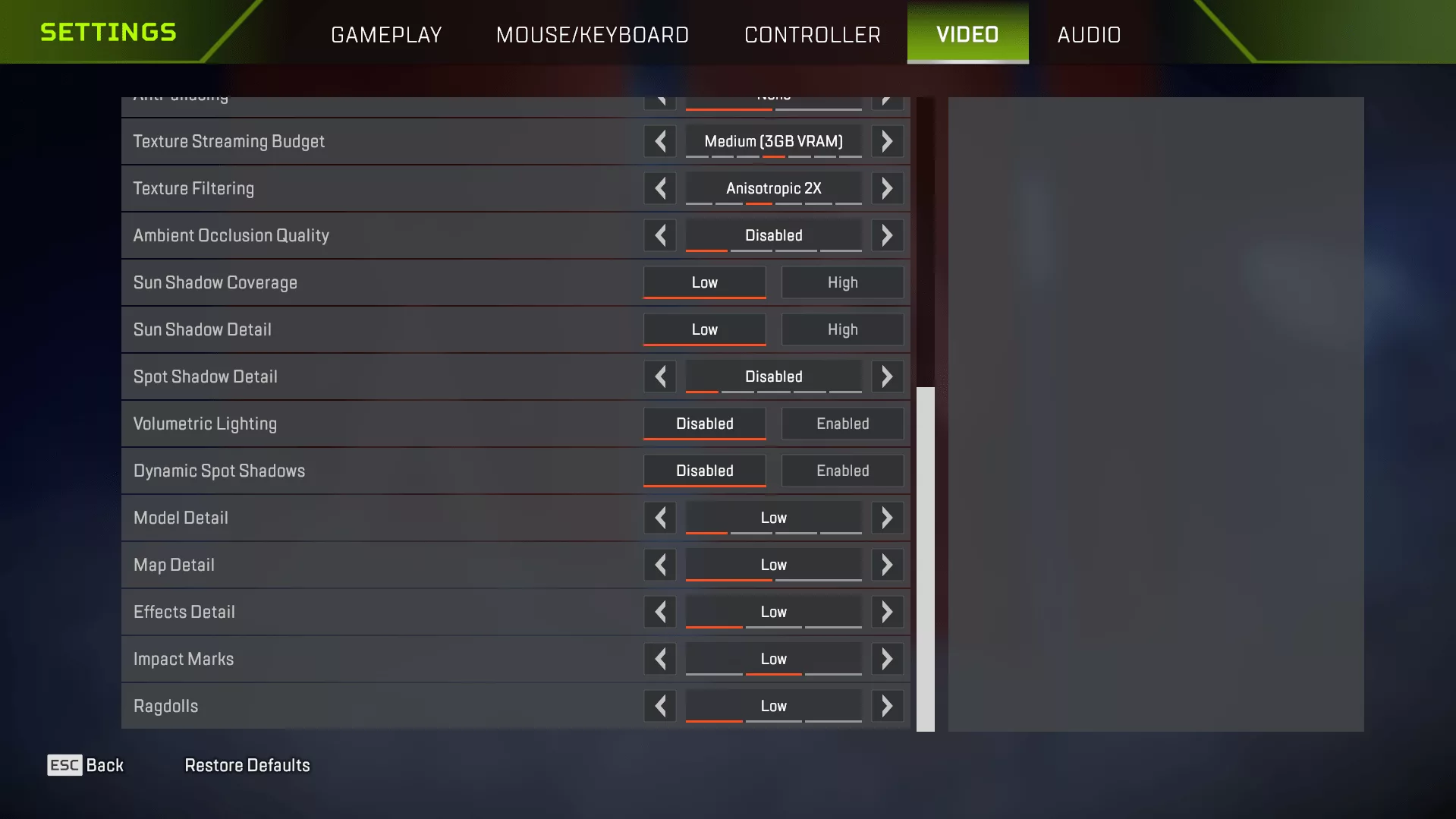
- Shadows: Set Sun Shadow Coverage and Sun Shadow Detail to Low. Disable Spot Shadow Detail entirely as small shadows rarely help in fights but add visual noise. Disabling Volumetric Lighting and Dynamic Spot Shadows removes heavy lighting effects that can obscure vision.
- Effects: Set Effects Detail to Low to reduce clutter from explosions and abilities. Set Ragdolls to Low to reduce physics load after knockdowns. Disable or set low for Ambient Occlusion Quality, Model Detail, and Impact Marks depending on your PC's power.
For FPS capping, match your cap to your monitor's refresh rate to keep frame pacing stable. For a 144Hz monitor, the suggested range is 141–144 FPS; for 240Hz, aim for 237–240 FPS. If performance is unstable on a low-end PC, start with a cap of 60 or 90 FPS and only increase it if the game remains smooth during real matches.
Mouse and Controller Settings
Your input configuration is critical for aiming precision. For mouse users, the recommended starting point is 800 DPI. While the exact in-game sensitivity depends on personal preference, a stable eDPI range often falls between 1000–1600. It is important to note that specific values like an ADS Sensitivity Multiplier of 1.0 are not universally confirmed as a mandatory setting for all players; instead, focus on finding a sensitivity that feels consistent for you.
For controller players, the recommended base setup includes:
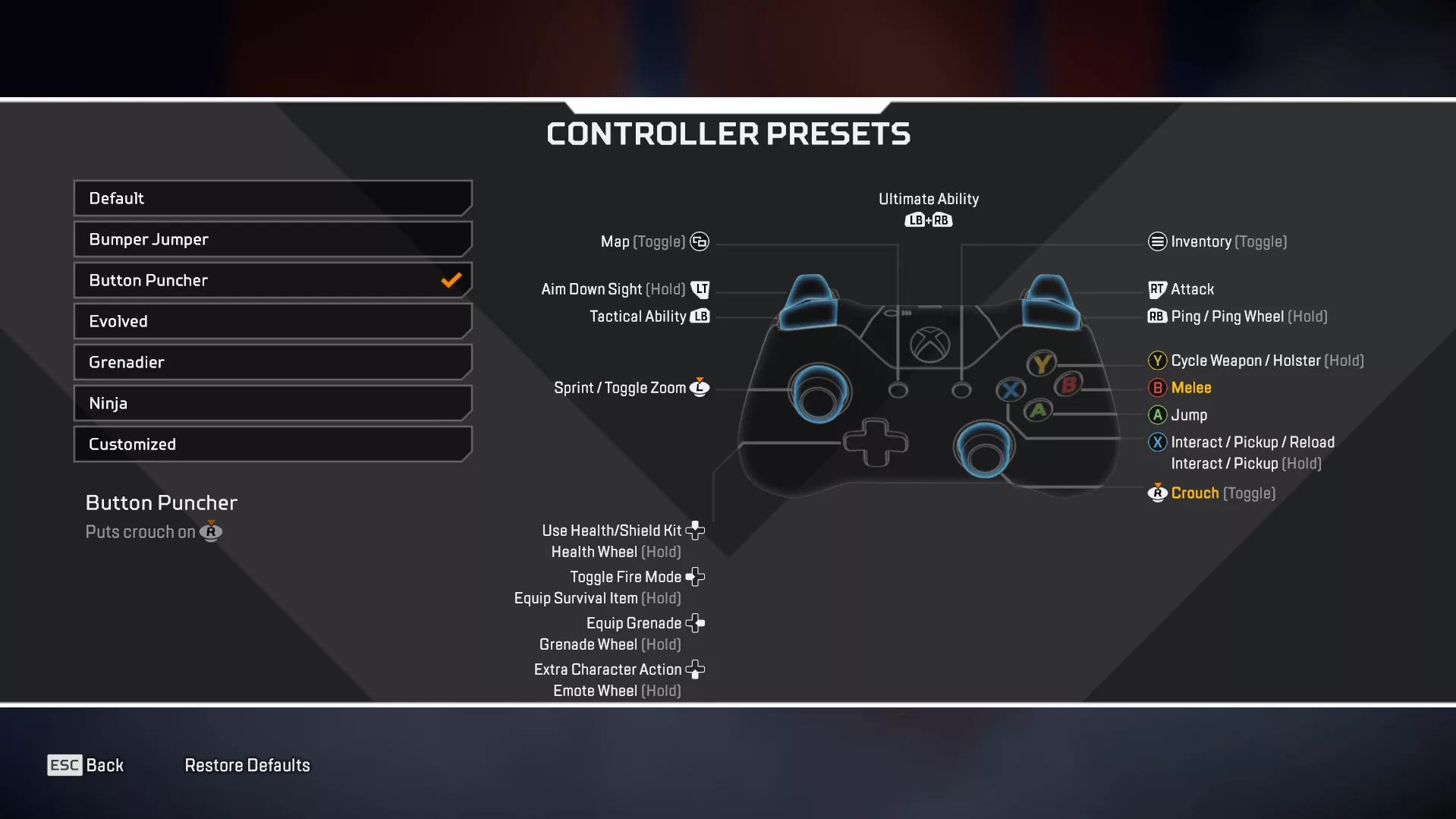
- Button Layout: Use Button Puncher. This swaps crouch and melee, allowing you to slide and crouch while maintaining aim control.
- Deadzone: Set to Small Deadzone to reduce stick drift and improve precision.
- Vibration: Turn Off. Haptic feedback can sometimes interfere with subtle movement inputs.
- Sensitivity: Use Look Sensitivity 4 (High) for general turning and ADS Sensitivity 3 (Default) for aiming down sights.
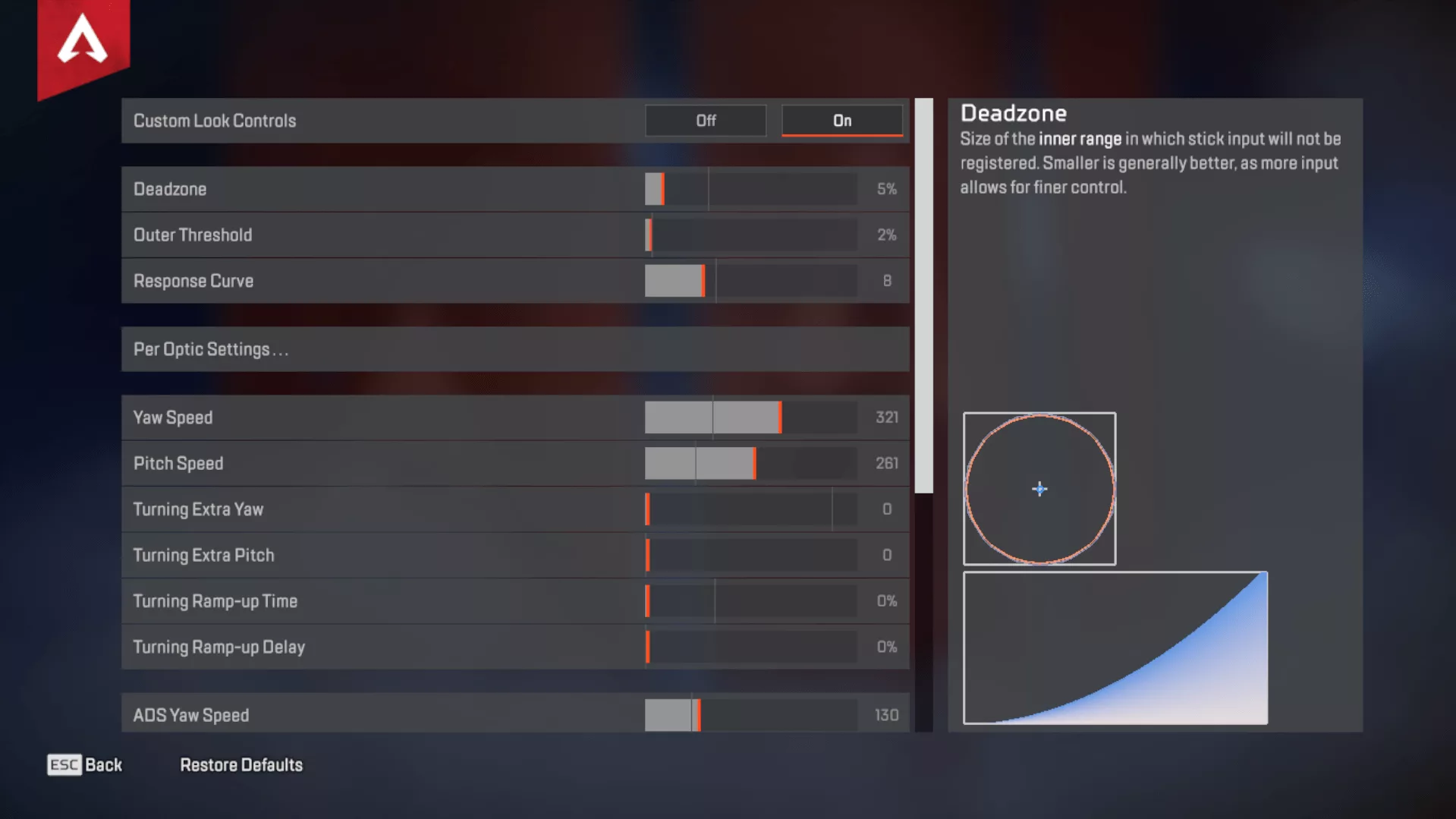
If you choose to use Advanced Look Controls, they can help fine-tune controller aim, but you should change one value at a time in the Firing Range before applying changes in matches. Do not adjust every setting simultaneously, as this makes it difficult to identify what is working best.
Audio Settings for Competitive Advantage
Sound is crucial in Apex Legends for locating enemies and hearing ability cues. The recommended audio configuration is to set Sound Effects Volume to 100% and Music Volume to 0%. This ensures that footsteps, gunfire, reloads, armor cracks, and ability sounds are as loud and clear as possible without background music masking important audio cues.
If you find that Legend voice lines cover combat audio, lower the Dialogue Volume accordingly. Keeping dialogue at a moderate level or muting it entirely can help maintain focus on the battlefield sounds.
Gameplay Settings (Season 29: Overclocked)
In Season 29: Overclocked, several gameplay settings were updated to improve performance and resource management. The most notable change is the Chain Healing setting. Previously, healing could chain indefinitely, but now you must choose between Single or Chain.
- Chain Healing: Set to Single. This is the safest option for most players. It queues one extra heal after the current heal finishes without overcommitting resources, preventing accidental resource waste during intense fights.
- Damage Numbers: Set to Stacking. This keeps damage numbers clear during sprays, team shots, and close-range fights, making it easier to track who is taking damage.
- Auto-Sprint: Set to Off. Turning this off gives better movement control during peeks, crouch fights, and small strafes, allowing for more precise positioning.
Launch Options
For users who want to enforce specific settings before the game loads, launch options can be a helpful tool. A safe and effective setup for general use is: +fps_max 240 -novid -fullscreen.
This command caps your FPS at 240 (adjustable based on your monitor), skips intro videos to save time, and forces Fullscreen mode. You can adjust the FPS cap value in this command to match your specific monitor refresh rate if you prefer a lower limit.
Settings for Low-End PCs
If you are playing on a low-end PC, stability is more important than raw graphical fidelity. The goal is not to make the game look pretty but to ensure stable FPS and clear enemies during busy fights. Start with Fullscreen mode, native resolution (or 1600×900 if necessary), and a realistic FPS cap of 60 or 90.
Disable heavy graphics options like Volumetric Lighting and Dynamic Spot Shadows immediately. Set all detail levels for shadows, effects, and models to Low or Disabled. Use Bilinear filtering instead of Anisotropic if you need every frame possible. By prioritizing stable frame pacing over high frame rates, you will find that the game feels much smoother and more responsive.
Травник
