How to Play Grand Theft Auto VI via Cloud Gaming and Remote Play
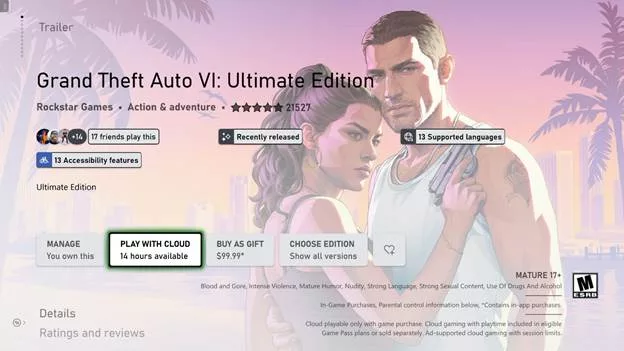
With the release of Grand Theft Auto VI, players have multiple ways to experience the sprawling world of Leonida beyond a standard console setup. Microsoft has detailed how to utilize Xbox Cloud Gaming and Remote Play, allowing users to stream the title to various devices, including mobile phones, PCs, and handheld gaming PCs.
Grand Theft Auto VI supports Xbox Cloud Gaming, which means the game is accessible even for those without a current-generation console. Through cloud streaming, the game can be played on Xbox One or Xbox Series X|S, the latter being a viable option for players looking to save local hard drive space. It is important to note that when streaming via Xbox Cloud Gaming, the game utilizes Xbox Series S graphics settings.
Access to cloud playtime is tied to specific Game Pass plans, which include a monthly allotment of up to 15 play hours. For players requiring more time, additional cloud playtime can be purchased. To use this feature, a valid copy of Grand Theft Auto VI from the Xbox Store is required.
For those who already own an Xbox Series X|S, Remote Play offers an alternative way to play anywhere. This feature allows you to stream gameplay directly from your console to devices such as mobile phones, laptops, PCs, or handheld gaming PCs like the Xbox ROG Ally.
How to Start Playing Grand Theft Auto VI via the Cloud
To begin a cloud gaming session using a controller connected to your console, follow these steps:
- From your Xbox Wireless Controller, press the Xbox button to open the guide, then search for Grand Theft Auto VI.
- Select the 'Manage' button and then 'See in Microsoft Store'.
- From the Store listing, select 'Play With Cloud'.
For the best gaming quality, connecting via a wired Ethernet cable is recommended. Even high-bandwidth wireless networks can occasionally experience dips in audio and video quality.
How To Start Playing Grand Theft Auto VI via Remote Play
To enable Remote Play on your Xbox Series X|S, navigate to Settings -> Devices & connections -> Remote features, and check the box for 'Enable remote features'. You can also select 'Test remote play' in this menu to check your connection quality.
Once enabled, you can access the stream on your chosen device:
- Mobile devices: Visit play.xbox.com/remoteplay in your browser, select your console, and choose 'Remote Play on This Device'.
- PC or Xbox ROG Ally: Open the Xbox on PC app, click your profile icon, go to 'Accessories & remote play,' and select 'Remote play' from your console.