

Counter-Strike 2 Best Settings and Options Guide
Optimizing software and driver settings is a crucial step in preparing to play Counter-Strike 2. Properly configured parameters can significantly increase frame rates, reduce input lag, and improve visual perception. In this guide, we will cover key video card settings, system launch options, and interface configurations often used by professional players to achieve maximum performance.
It is important to understand that ideal settings depend on your hardware and personal preferences. The recommendations below are oriented towards achieving maximum FPS and minimizing latency, but you can always adapt them to your needs.
Best Video Settings for CS2
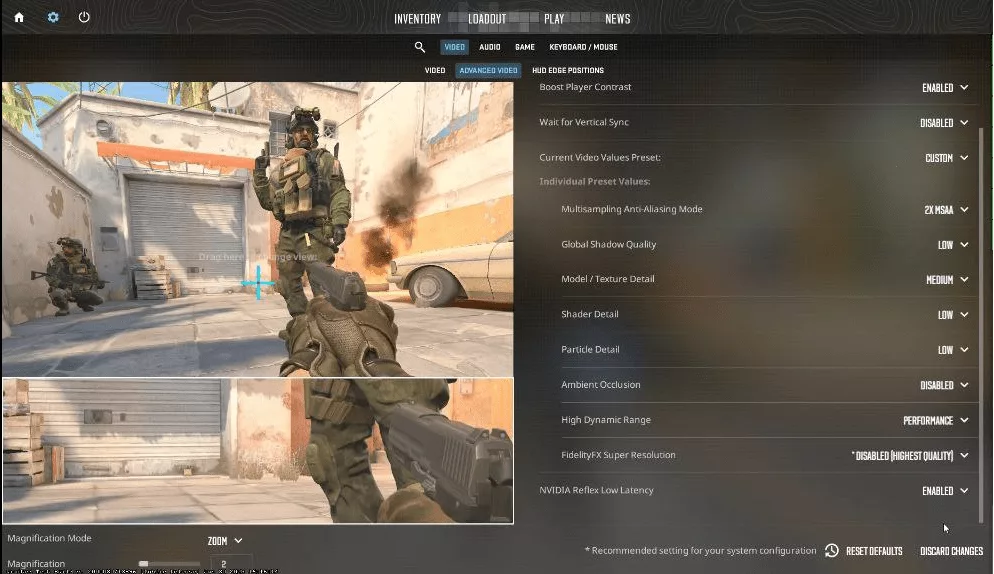
In the game menu, go to the "Video" tab. To achieve maximum FPS, apply the following parameters:
- Brightness: 105%. Increasing brightness helps distinguish details in shadows and on light surfaces.
- Aspect Ratio: 16:9. This is the standard resolution for most monitors. Some professional players use a 4:3 aspect ratio (e.g., 1280×960), which visually augments player models but reduces field of view.
- Resolution: Native (your monitor's native resolution).
- Display Mode: Fullscreen.
- Laptop Power Savings: Disabled.
- Boost Player Contrast: Enabled for standard settings, though many pros disable it.
- Wait for Vertical Sync: Disabled.
- Multisampling Anti-Aliasing Mode: None for maximum performance or 8x MSAA for smoother edges.
- Global Shadow Quality: High.
- Model/Texture/Sh/Particle Detail: Low to save resources.
- Ambient Occlusion: High.
- HDR: Performance.
- FSR: Disabled.
- NVIDIA Reflex Low Latency: Enabled + Boost to reduce latency.
Note: If your monitor has 144 Hz or higher, ensure FPS is not lower than this mark for a smooth image.
Best Launch Options For CS 2
To ensure correct operation and performance, add the following parameters to the game properties in Steam:
Explanation of these options:
- -high: Runs the game with high process priority.
- +fps_max 0: Removes the limit on frames per second, allowing the game to run at maximum system capabilities.
- -disable_d3d9ex: Disables support for old DirectX engines, which may fix graphical errors.
- -novid: Skips the Valve intro video.
- -console: Opens the command line console upon launch.
- -refresh 144: Forces the monitor refresh rate to 144 Hz. Replace the number with your monitor's value (e.g., 240 or 360).
- -nojoy: Disables joystick support.
Best Nvidia & AMD Settings for CS 2
Open the NVIDIA Control Panel and select these graphics settings:
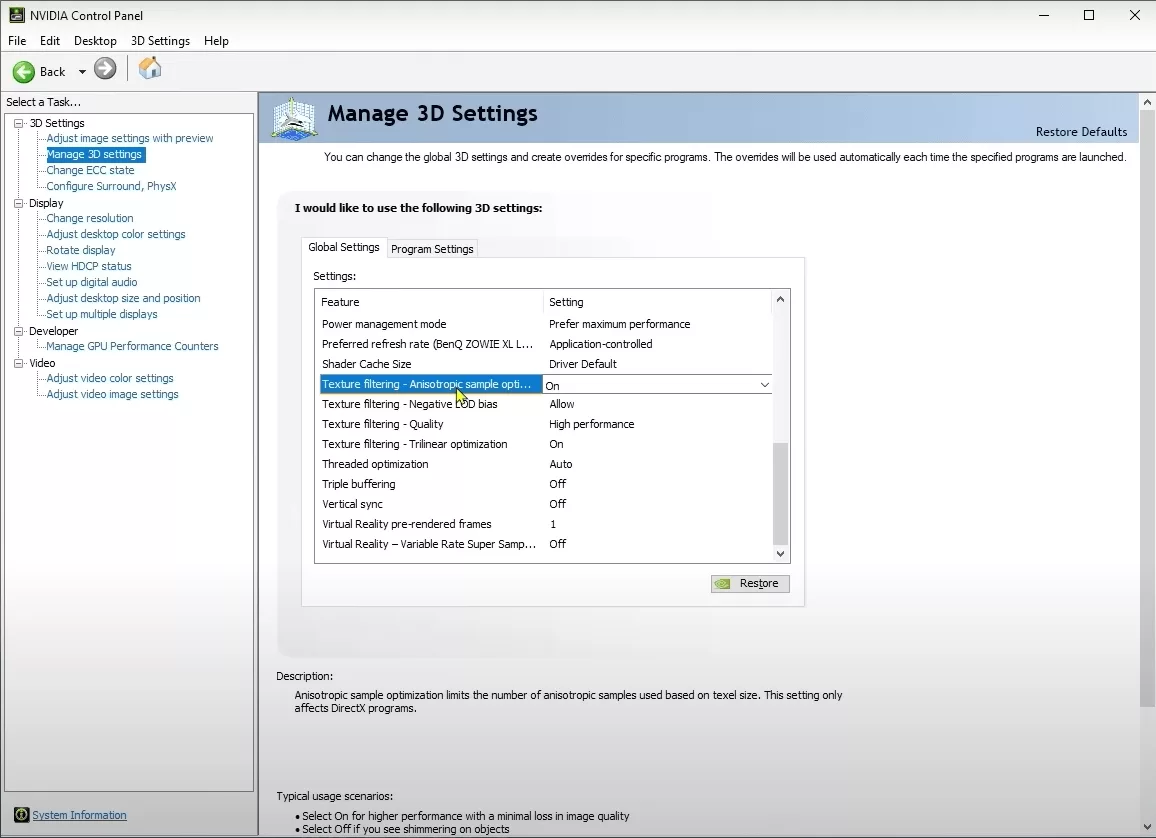
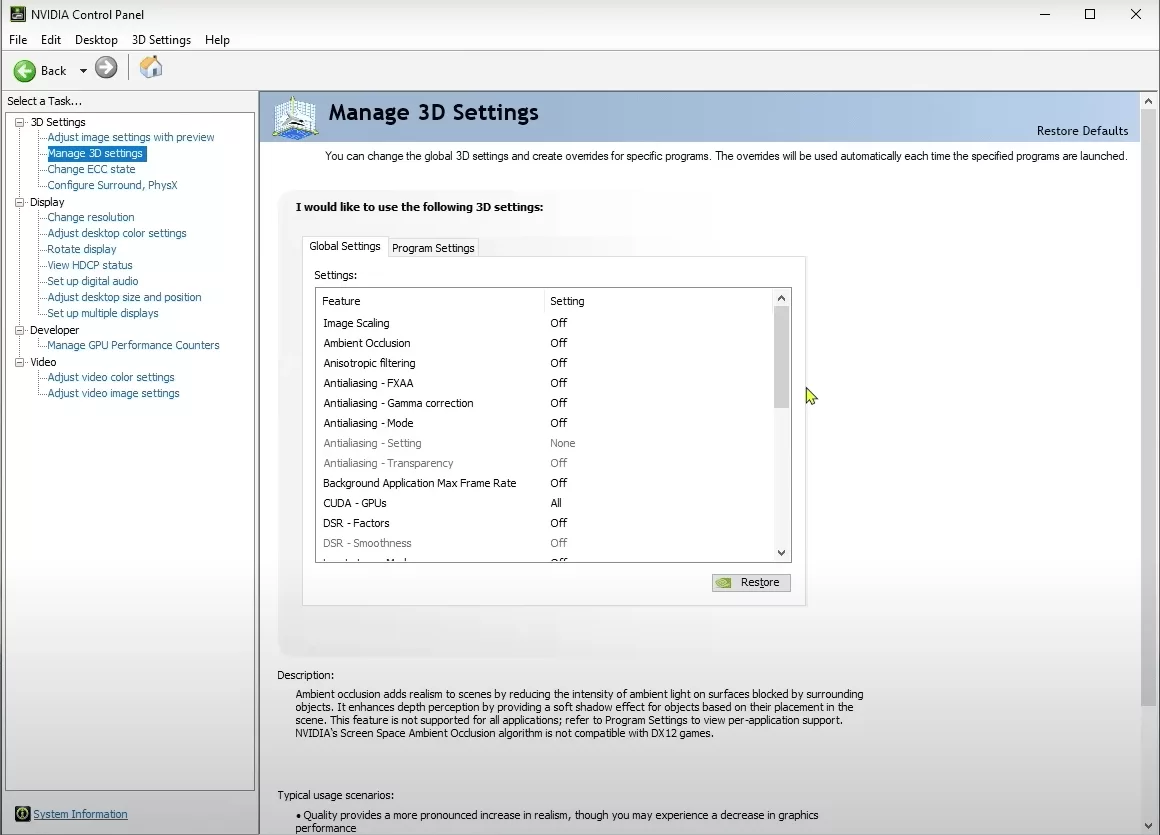
- Image Scaling: Off.
- Ambient Occlusion: Off.
- Antialiasing – FXAA/Gamma/Mode: Off.
- Power management mode: Prefer maximum performance.
- Vertical sync: Off.
- Triple buffering: Off.
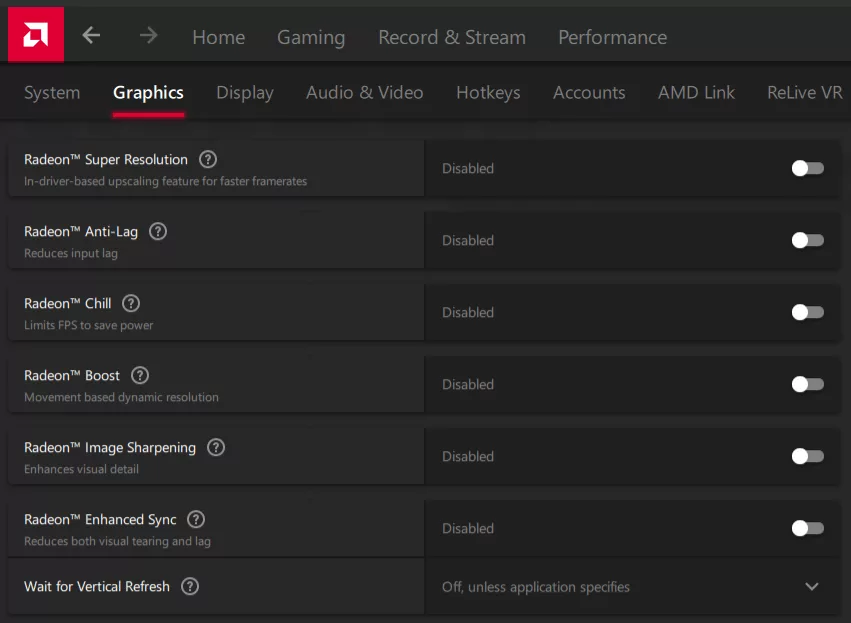
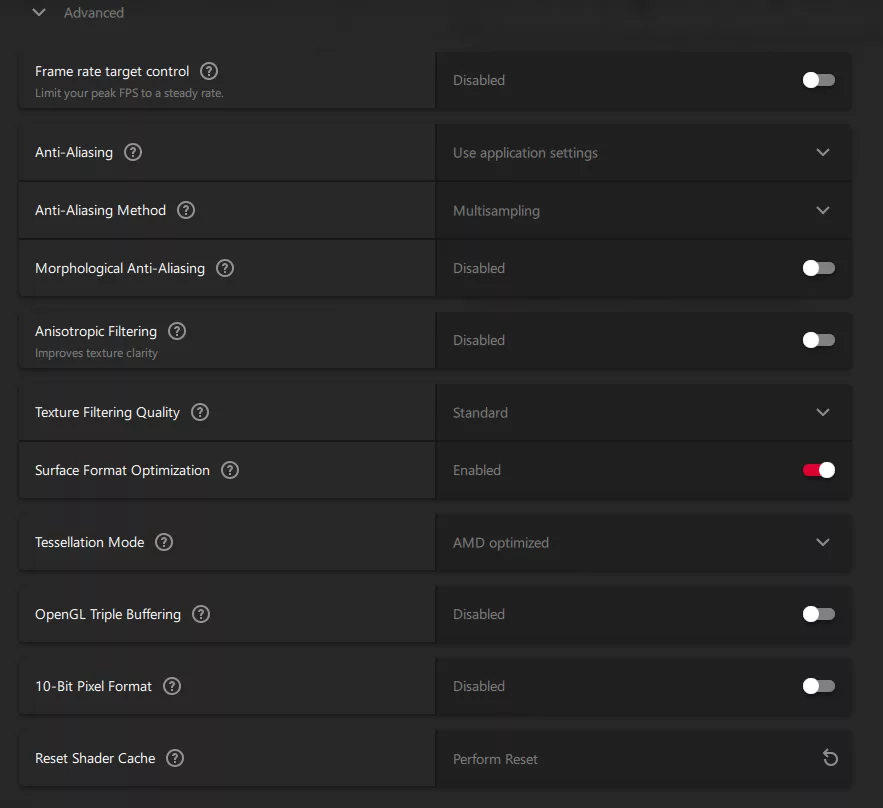
For AMD Radeon Software settings:
- Radeon Super Resolution / Anti-Lag / Chill / Boost / Image Sharpening: Off.
- Wait for Vertical Refresh: Off.
- Anti-Aliasing method: Multisampling.
- Anisotropic Filtering: Off.
Best Mouse Settings for CS 2
There are no universal sensitivity settings. Most professional players use a DPI of 400, but this is not a mandatory requirement. It is recommended to find your sensitivity individually:
- Use a custom map or an official non-competitive server for testing.
- Set sensitivity so that turning 180 degrees does not require moving the cursor across the entire mousepad surface for two minutes.
- Set the highest sensor update rate for your mouse.
Best CS 2 Resolution
The choice of aspect ratio depends on your goals. A 16:9 aspect ratio (1920×1080) increases field of view, allowing you to see more space. A 4:3 aspect ratio (1280×960 or 1280×1024) visually augments player models, which may help with aiming but narrows the view.
Best CS 2 Audio Settings
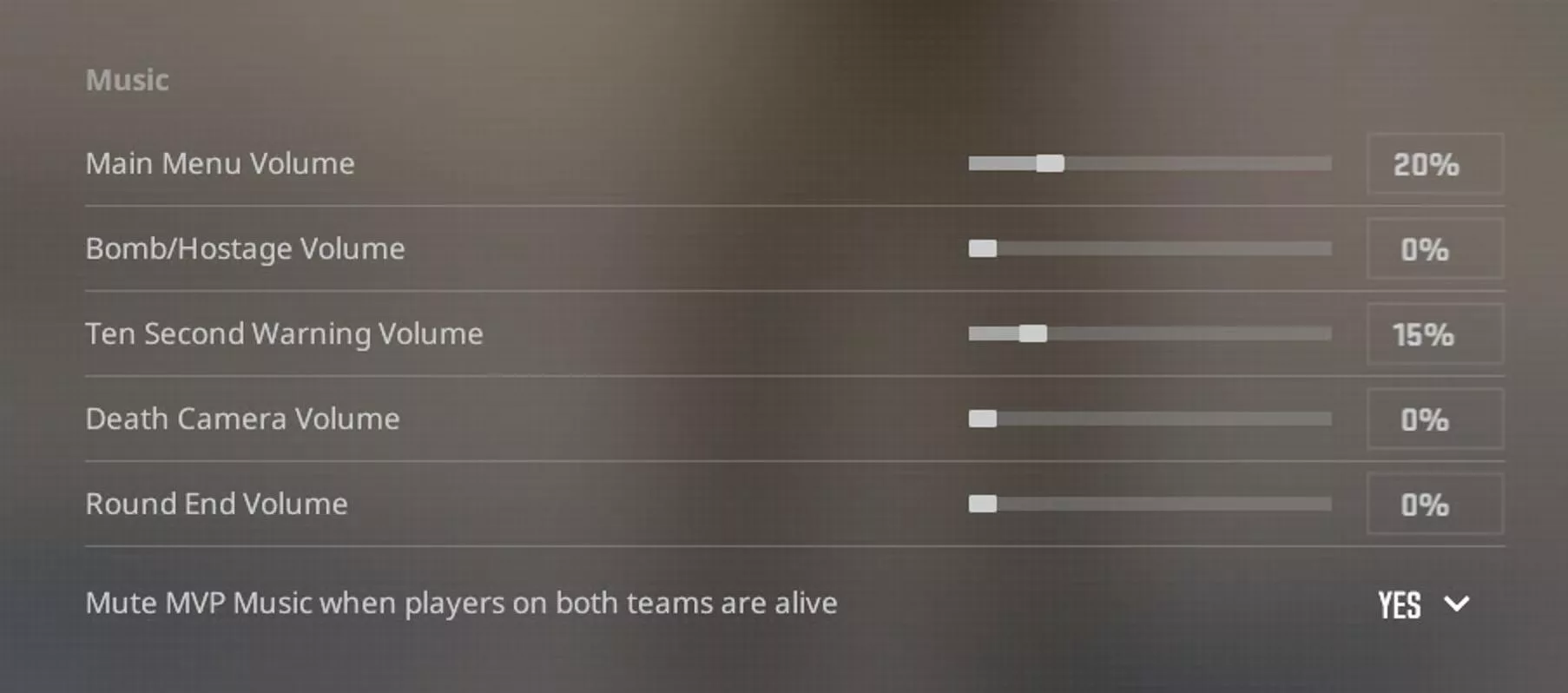
Audio settings require attention to system volume levels. It is recommended to set a fixed volume level in Windows and configure all programs accordingly for stability. In the game itself, it is important to turn on the bomb timer sound to at least 10%, as this is a critical signal regarding time until detonation.
Best CS 2 Radar Settings
For effective navigation and tracking of enemy positions, configure the radar as follows:
- Radar Centers The Player: Yes.
- Radar Is Rotating: Yes.
- HUD Size: 1.00-1.30.
- Map Zoom: 0.40.
- Toggle Shape With Scoreboard: Yes.
These settings allow you to quickly orient yourself in space and see where enemies marked by the team are located.
Травник
